First Login
Logging in the first time
Categories:
Once you get AudioBookRequest running, you’ll be greeted with an initialization page when you visit the website.
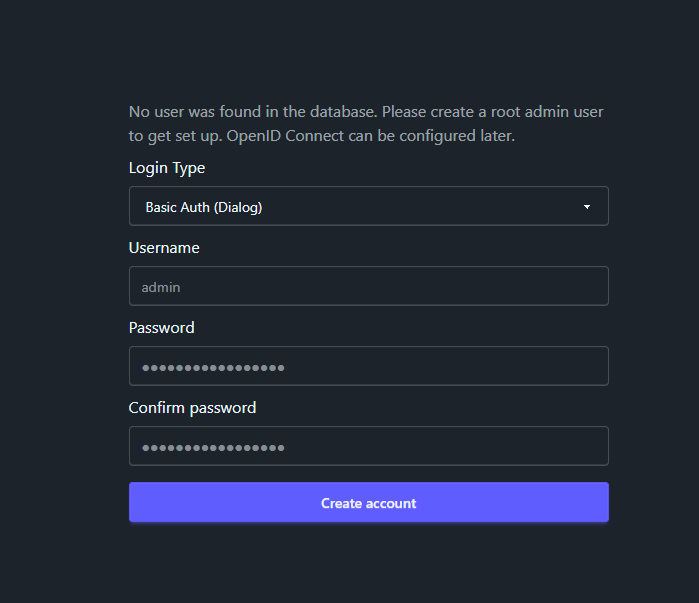
On this page you have to set the type of login you want to use for the app and then create the login details for the root admin. You can choose from 3 login types on this page:
- Basic Auth: This is the most simple form of login. Your browser will show a popup login dialog which will then be used to log in to the site. Password managers usually don’t work for this type of login, but because it is very simple you can also easily send authenticated requests in scripts. Read more here.
- Forms: This is the standard type of login where you fill out a login-form. Password managers usually work with this.
- None: This turns off all authentication. This is best if you have a proxy and are the only user or you don’t mind everyone having root access to the site.
OpenID Connect
AudioBookRequest supports logging in with OpenID Connect. You’ll have to first select one of the login-types above to be able to adjust the OIDC settings. Head to the OIDC Tutorial for more info.Warning
Even if you intend to turn off all authentication or want to later use OIDC, you should take note of the username/password you set. You’ll need them once you decide to ever change the login type.Feedback
Was this page helpful?
Glad to hear it! Please tell us how we can improve.
Sorry to hear that. Please tell us how we can improve.